Getting started
Verbinal is a Mac app for astronomers who use the Canadian Astronomy Data Centre (CADC) and the CANFAR science platform. In one window you can search the archive, keep and read your observations, look at FITS images and data cubes, manage your VOSpace storage, and run sessions, batch jobs and code on CANFAR. This chapter installs it, walks through the first launch, and shows you around the window.
What you need
- A Mac with macOS 14 (Sonoma) or newer, with Apple silicon or an Intel processor.
- For Portal, Storage and Remote Compute: a CADC account, and for sessions and jobs on CANFAR, an account that has access to the CANFAR science platform. See canfar.net.
- Nothing else for Search, Research, the FITS Viewer, the Cube Viewer, Workflows and the AI Guide: they work without signing in.
- On Windows or Linux: this manual is for the Mac. Verbinal for Windows and for Linux are separate apps, with their own manuals to come.
Installing Verbinal
Verbinal is free.
- Mac App Store (recommended): Verbinal on the Mac App Store. The store keeps it up to date.
- GitHub: each release on GitHub Releases has
Verbinal-macOS.dmg,Verbinal-macOS.zipandchecksums-sha256.txt. This build is not signed: open the disk image, drag Verbinal to Applications, and the first time, Control-click the app and choose Open.
The first launch
- The Terms of Use. Read them, tick I have read and agree to the Terms of Use…, then click I Agree. Quit (⌘Q) closes Verbinal instead. You see them again only when they change; they stay readable from About Verbinal ▸ Terms of Use.
- Welcome to Verbinal. A short tour of what the app does. Set up the AI assistant starts the setup described in Working with an AI assistant; Explore on my own closes it. It shows once, and again when a new version has news for it.
- Notifications. macOS asks whether Verbinal may send notifications. Verbinal uses them to tell you when a session is ready or fails to start, when batch jobs finish or fail, and when an export is done.
Home
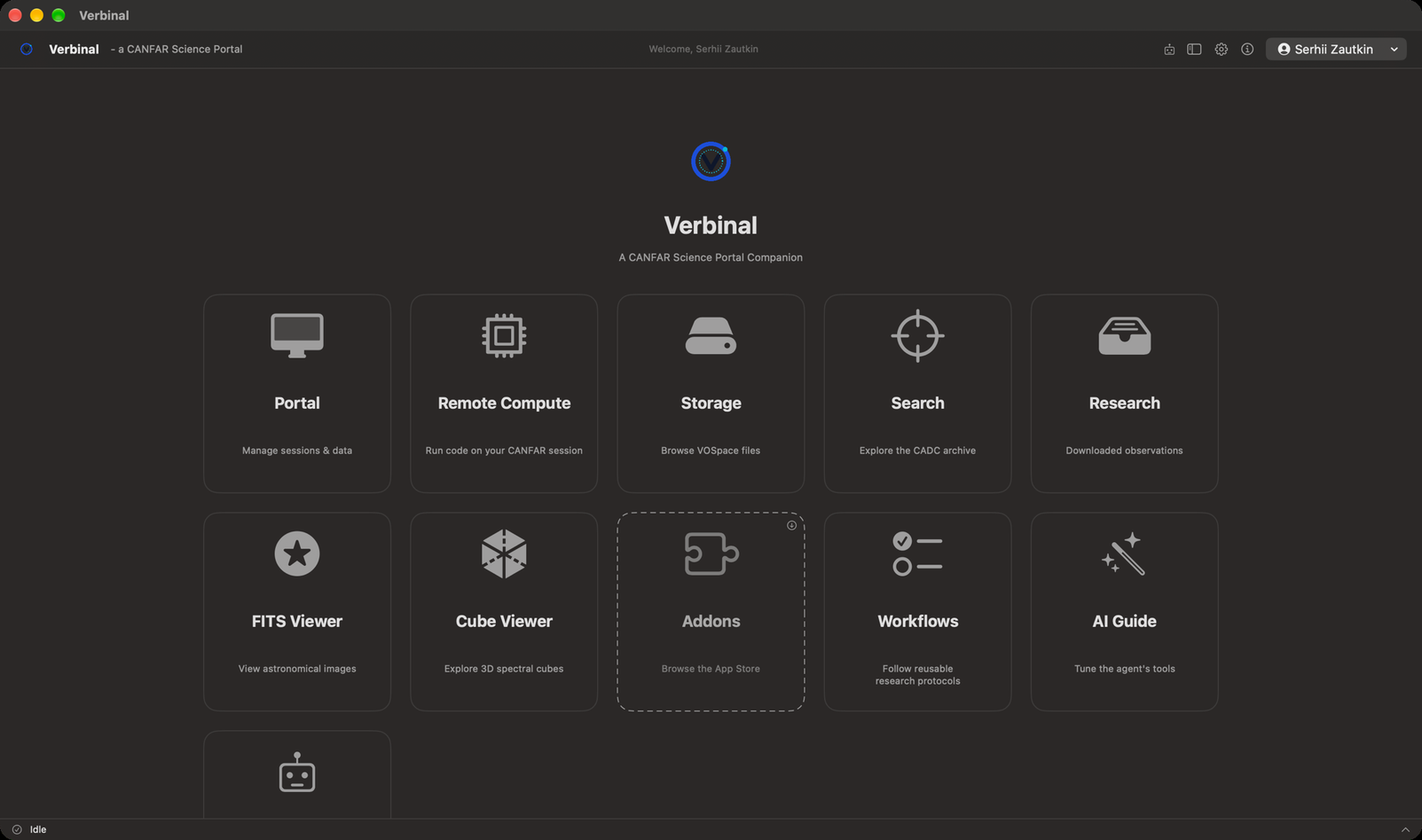
Home is where Verbinal opens. Each tile opens a part of the app:
| Tile | What it opens | Sign-in |
|---|---|---|
| Portal | Your CANFAR sessions, the launch form and batch jobs. Chapter 6 | yes |
| Remote Compute | A session on CANFAR that runs your code. Chapter 10 | yes |
| Storage | Your VOSpace files. Chapter 9 | yes |
| Search | The CADC archive. Chapter 2 | — |
| Research | The observations you keep, with your notes. Chapter 3 | — |
| FITS Viewer | FITS images and spectra. Chapter 4 | — |
| Cube Viewer | Spectral cubes in 3D. Chapter 5 | — |
| Addons | The Mac App Store, to find Verbinal add-ons | — |
| Workflows | Step-by-step research protocols. Chapter 11 | — |
| AI Guide | What every AI assistant is told. Chapter 13 | — |
| AI Assistant | The setup that connects an AI assistant. Chapter 12 | — |
- While you are signed out, the tiles that need an account say Locked. Click one, sign in, and Verbinal takes you there.
- When an add-on such as Verbinal Pi (notebooks) is installed, its own tile takes the place of Addons.
- You can hide the AI Guide tile in Settings ▸ MCP Clients; the AI Guide itself stays in the Go menu.
- To come back to Home from anywhere, use the back arrow at the top left, or Go ▸ Landing (⌘0).
The window
Every screen has the same toolbar at the top and the activity bar at the bottom.

- Pending changes: what an AI assistant proposed and is waiting for you. A red badge counts them. See Pending.
- Show file browser (⌘B): the files on this Mac, in a panel on the left.
- Settings (⌘,). See Settings.
- About Verbinal: the version, and details for a bug report.
- Your CADC account: your name, with your email and institute in its menu, and Sign Out. When you are signed out, a Sign In button stands here instead.
The account menu is on Home and in Portal. On the other screens, the toolbar starts with a back arrow (Go back) and the screen's name.
The activity bar
The line at the bottom of the window says what Verbinal is doing: Idle, the task that is running, or how many are. A task that failed shows in red. Click the line to see the Activity list: each task, who started it (You, Your assistant or Verbinal), and what it is doing now or why it failed. Clear Finished empties the finished ones from the list.
The file browser
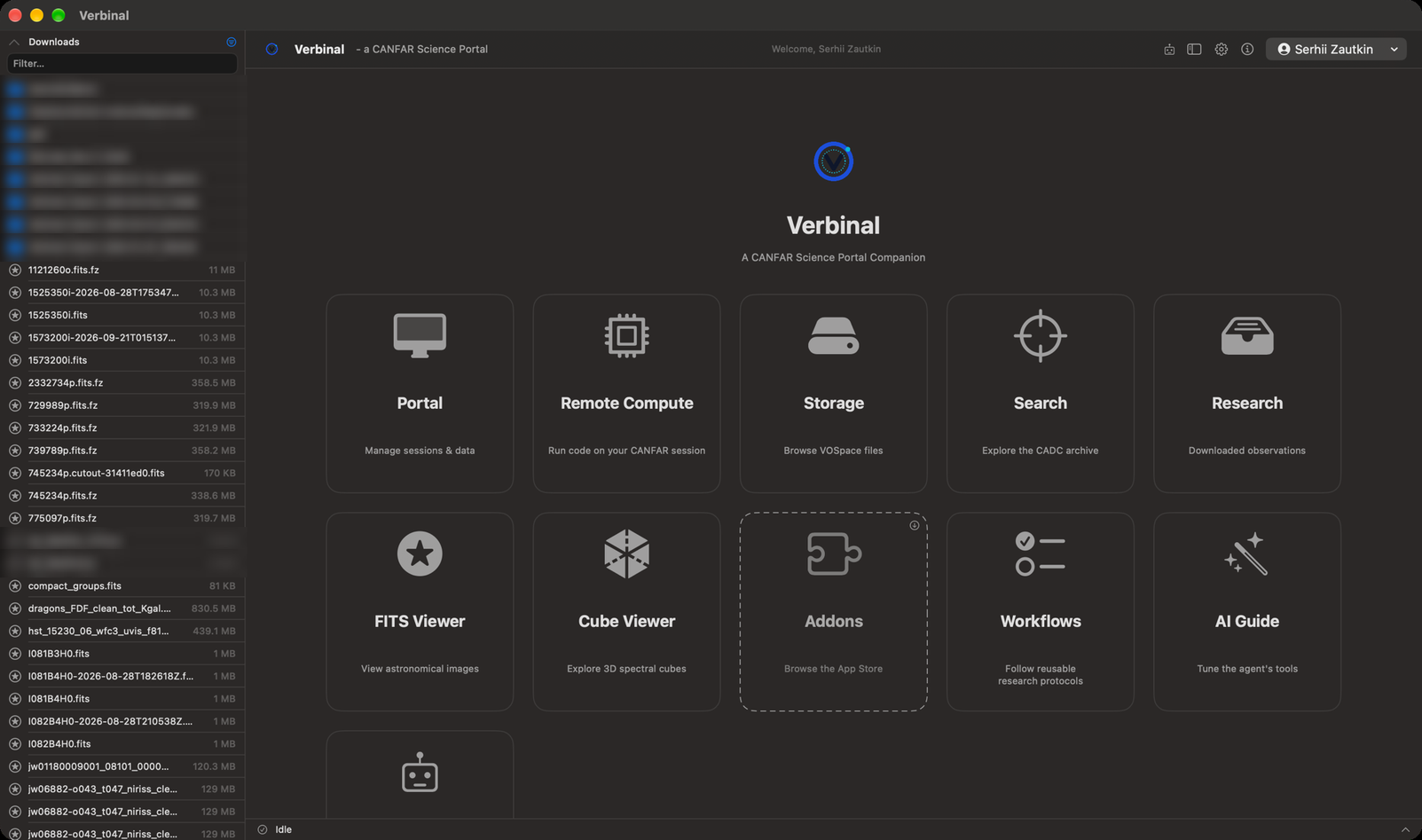
Press ⌘B, or click its toolbar button, to show the files on this Mac.
- It opens in your Downloads folder, where Verbinal saves what you download. The arrow beside the folder's name goes to the parent folder.
- Filter… narrows the list by name. The button at the top right shows only the files Verbinal
opens: FITS (
.fits,.fit,.fts,.fz), notebooks (.ipynb), Python (.py) and Markdown (.md). - Click a folder to open it, and a FITS file to open it in the FITS Viewer. A file with a third axis asks first whether to open it as an image or as a cube. Other files open in their usual Mac app.
- Verbinal can read only the folders you let it. For a folder outside Downloads, click Grant Access… and choose it.
Getting around
The Go menu reaches every screen from anywhere:
| Go | Shortcut |
|---|---|
| Landing (Home) | ⌘0 |
| Search | ⌘1 |
| Research | ⌘2 |
| FITS Viewer | ⌘3 |
| Cube Viewer | ⌘4 |
| Workflows | — |
| Portal | ⌘5 |
| Storage | ⌘6 |
| AI Guide | ⌘7 |
| Image Discovery… | ⌘8 |
Remote Compute is reached from its Home tile. Every menu and shortcut is in Keyboard shortcuts and menus.
Signing in and out
- Click Sign In in the toolbar on Home, or a tile that says Locked.
- In Log In to CANFAR, type your CADC Username and Password.
- Leave Remember me ticked to stay signed in: Verbinal then keeps your password in the macOS Keychain, on this Mac only, and signs you in again by itself when your session with CADC expires. Untick it to keep only the session, so you sign in again when it expires.
- Click Log In.
When Verbinal starts, it checks your saved session while Home is already usable; the tiles that need an account unlock when the check is done. If the Mac is offline, the check waits for the network.
To sign out, open your account menu (your name, at the top right of Home or Portal) and choose Sign Out.
Language
Verbinal speaks English and French. To choose, open Settings ▸ General ▸ Language: System follows your Mac, or pick English or Français. macOS applies an app's language when it starts, so Verbinal shows Restart required; click Restart Now.
Help, and what Verbinal can do
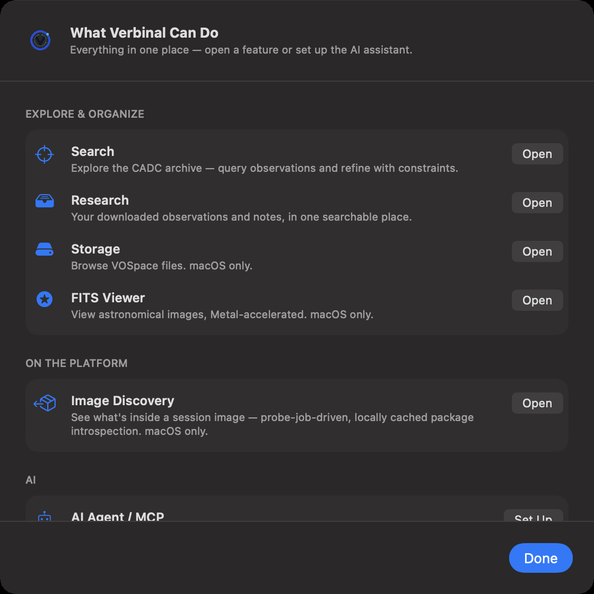
The Help menu has:
- What Verbinal Can Do…: an overview of its main features, each with a button to open it.
- Connect an AI Agent…: the assistant setup, as the AI Assistant tile opens it.
- Verbinal Help (⌘?): Verbinal's page on GitHub, which leads to this manual.
- Report an Issue: a new issue on GitHub, in your browser.
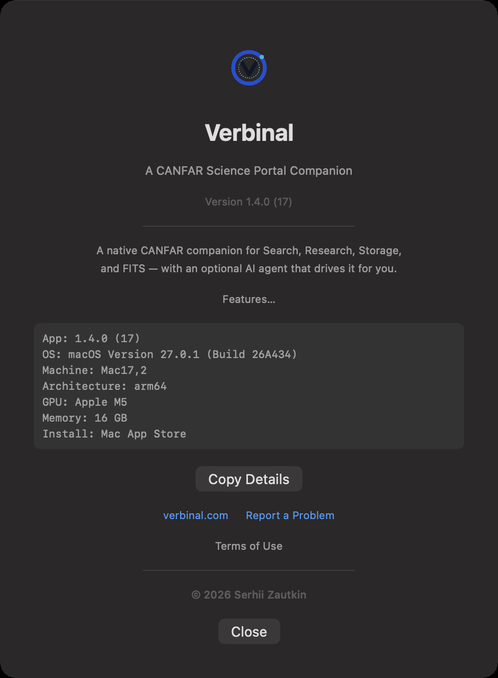
About Verbinal (the ⓘ button, or the Verbinal menu) shows the version and the details a bug report needs: the app, macOS, the Mac, its architecture, GPU and memory, and where Verbinal was installed from. Copy Details copies them. Report a Problem opens a new issue on GitHub, and Terms of Use shows the terms you accepted.
What an assistant can do here
An AI assistant can move between screens, open and close the file browser and the sheets, and read the activity bar, as you can. Signing in and out stays yours: see Working with an AI assistant.