Search the CADC archive
Search finds observations in the CADC archive: by target or position, by date, by wavelength, by collection and instrument, or with your own ADQL query. It works without signing in; sign in to see proprietary data you have access to. Open it from its Home tile, or Go ▸ Search (⌘1).
The screen has three tabs at the top, Search, Results and ADQL, and a side panel on the right with your recent searches and saved queries.
The search form
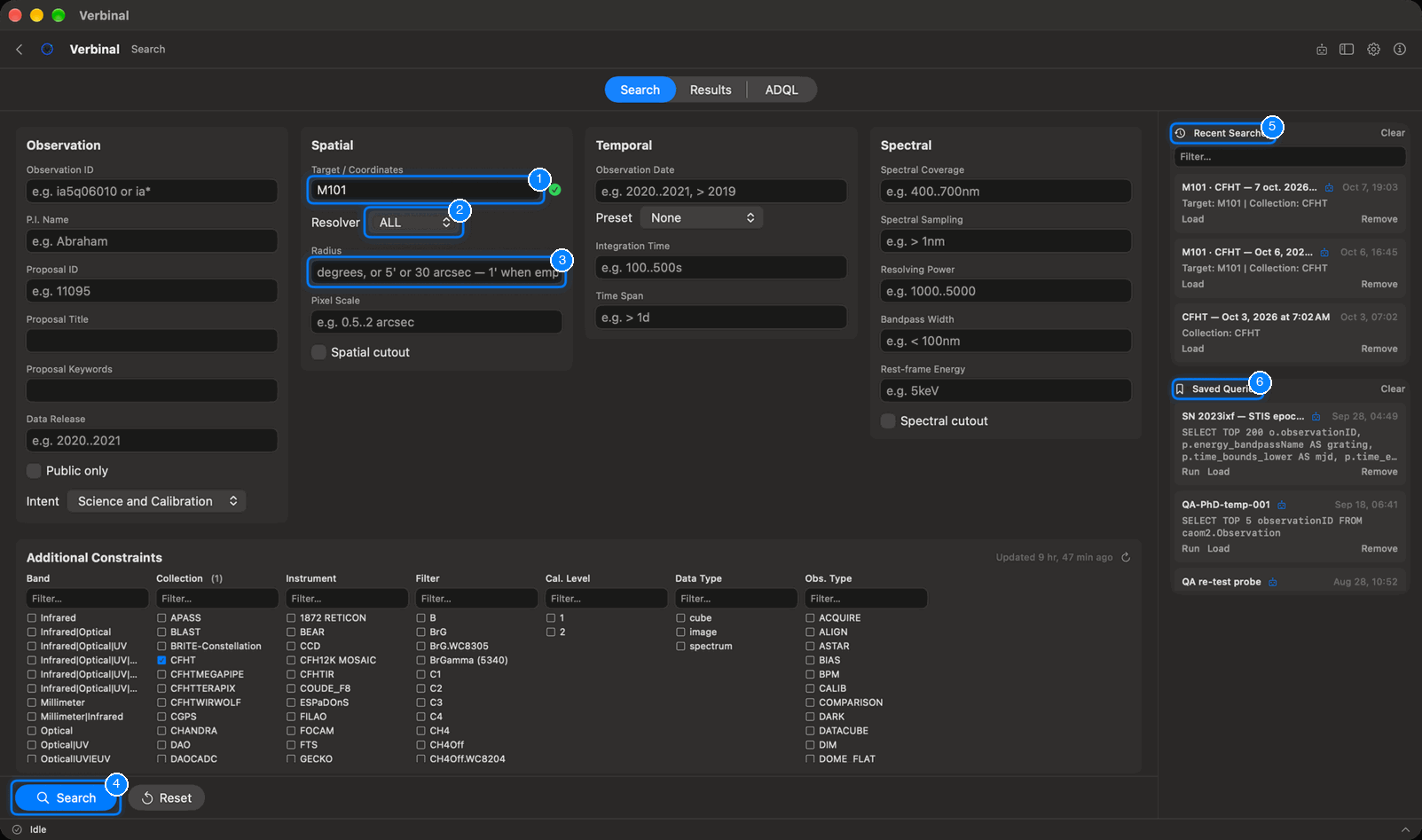
- Target / Coordinates: a name (
M31,NGC 5457,SN 2023ixf) or a position (10.68 41.27). As you type a name, Verbinal resolves it and shows Resolved: RA …, Dec … with a tick. - Resolver: which service turns names into positions: ALL (the default), SIMBAD, NED, VIZIER, or NONE to search the name as written in the archive.
- Radius: the cone around the target, in degrees, or as
5'or30 arcsec. Empty, it is 1′. A radius typed after the target (M101 0.2deg) wins. - Search (⌘↩) runs the search; Reset beside it clears every field and filter.
- Recent Searches: every search you run, to load again.
- Saved Queries: the queries you saved, to run or load.
The form has four groups, and Additional Constraints below them. Fill in only what you need;
ranges are written a..b, and > or < set one bound.
| Group | Fields |
|---|---|
| Observation | Observation ID (* as a wildcard), P.I. Name, Proposal ID, Proposal Title, Proposal Keywords, Data Release, Public only, and Intent: Science and Calibration, Science only or Calibration only. |
| Spatial | Target / Coordinates, Resolver, Radius, Pixel Scale (0.5..2 arcsec), and Spatial cutout. |
| Temporal | Observation Date (2020..2021, > 2019), Preset (Past 24 hours, Past week, Past month), Integration Time (100..500s), Time Span (> 1d). |
| Spectral | Spectral Coverage (400..700nm; units nm, um, mm, cm, m, Hz, A, eV), Spectral Sampling, Resolving Power, Bandpass Width, Rest-frame Energy (eV to GeV), and Spectral cutout. |
Spatial cutout and Spectral cutout make a download from these results fetch only the part of a file inside the search's circle, or its wavelengths, cut on CADC's side. See Cutouts.
Additional Constraints: the data train
Below the form, seven lists narrow the search by what the archive holds: Band, Collection, Instrument, Filter, Cal. Level, Data Type and Obs. Type. Tick the values you want; each list then shows only what goes with your ticks to its left (choose a collection, and the instruments are that collection's). Each list has its own Filter… box. The lists come from CADC and are kept on your Mac; the line above them says when they were updated, and its button fetches them again.
While a search runs
A search usually takes a few seconds. While it runs, the button shows Waiting for CADC with the seconds; Cancel stops it.
The results
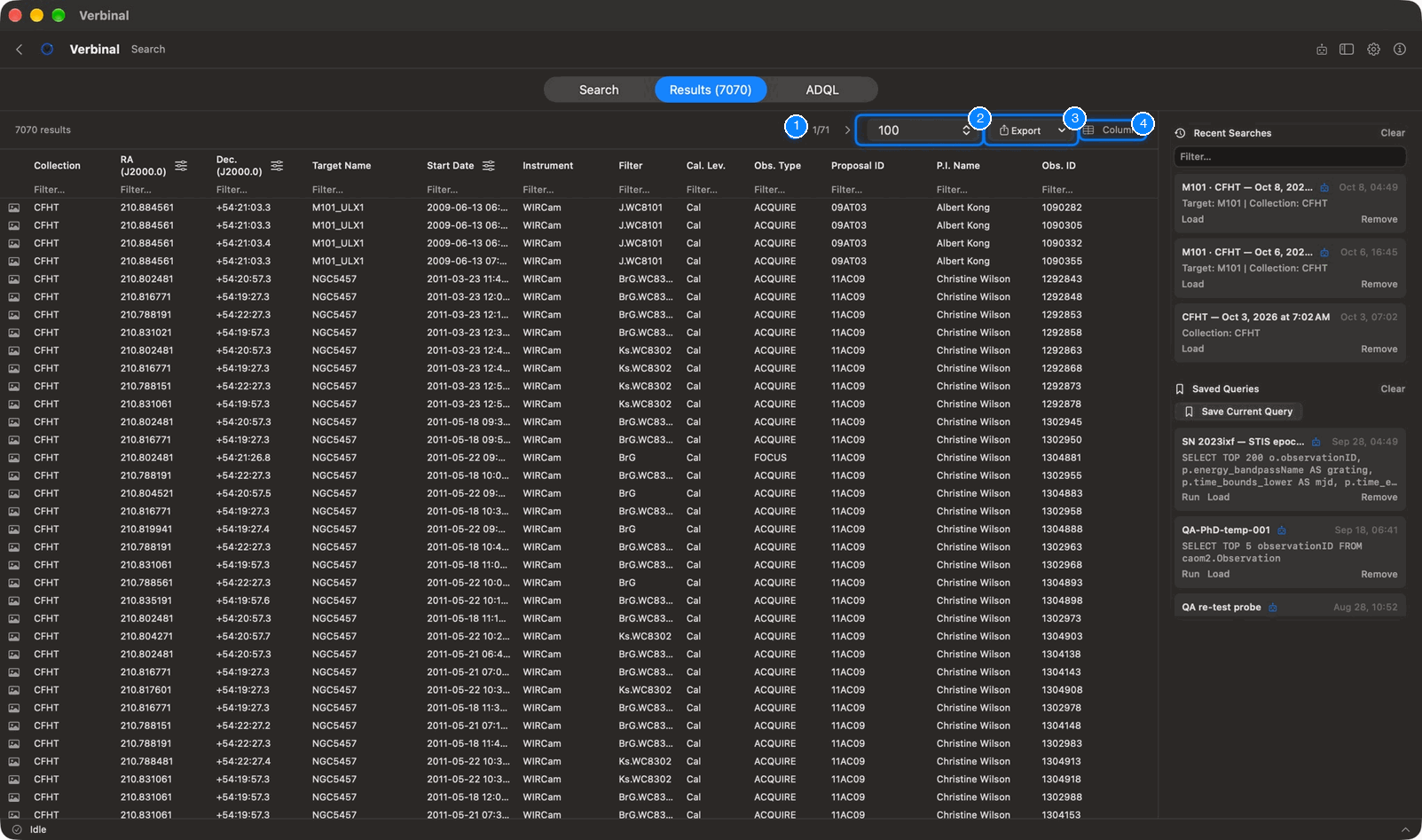
The Results tab shows how many observations matched, a page at a time.
- Previous page and Next page (⌘[ and ⌘]), with the page number.
- Rows per page: 50, 100, 500, or All, up to the number it shows.
- Export (⇧⌘E): the rows as you see them (Current View: CSV (filtered), TSV (filtered)), or the whole query again from CADC (Full Query (server): CSV, TSV, VOTable). You choose where to save the file.
- Columns: which columns show. Show All, Hide All, Reset to Defaults, or tick them one by one; Filter columns finds one by name.
In the table:
- Click a column's header to sort by it; click again to reverse.
- The icon beside a header switches its unit: right ascension in hours or degrees, declination in degrees-minutes-seconds or degrees, dates as calendar dates or MJD, wavelengths in the unit you choose.
- The Filter… row under the headers (⌘F) narrows the rows by any column. The count then reads "… of … results".
- Hover over the camera icon at the start of a row to see the observation's preview.
- Double-click a row to open its detail.
- Right-click a row for Open Detail, Open on CADC…, Download File… (in your browser), Save to Research, Copy Details, Copy Row and Copy Page. Right-click a value to copy it, or to narrow the search to that value (Narrow Search to …).
When a search hits CADC's limit on rows, the count says so: more rows may exist. Narrow the search to see them.
An observation's detail
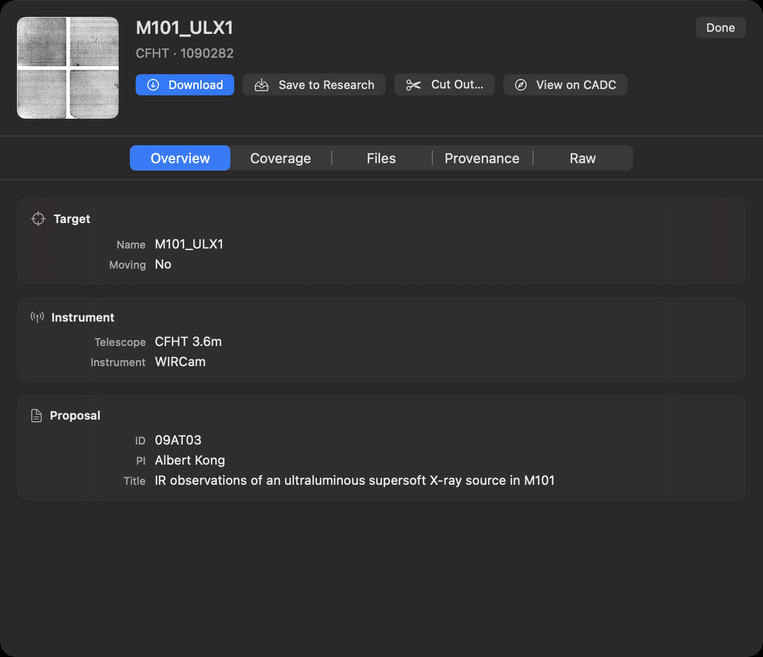
The detail shows the observation's preview, its target and collection, and five tabs:
| Tab | What it shows |
|---|---|
| Overview | The Target (name, type, redshift, moving, standard, keywords), the Instrument and Telescope, and the Proposal (ID, PI, project, title). |
| Coverage | For each plane: polarization, pixels, resolution, pixel scale, footprint, wavelength range, filter, band, resolving power, and the time it covers. |
| Files | Every file of the observation, each with its own Download. |
| Provenance | How it was made: pipeline, version, producer, run, inputs, and quality (limiting magnitude, background, sources). |
| Raw | Every column of the result, All Columns. |
Its buttons:
- Download fetches the observation's file, asks where to save it, and keeps the observation in Research. After that it reads Re-download. With a cutout ticked in the form, it reads Download Cutout.
- Save to Research keeps the observation in Research without its file: for notes, and to download later. Once kept, it reads In Research.
- Cut Out… opens the cutout editor.
- View on CADC opens the observation's page on CADC's website.
Some metadata of proprietary observations shows only when you are signed in.
Cutouts
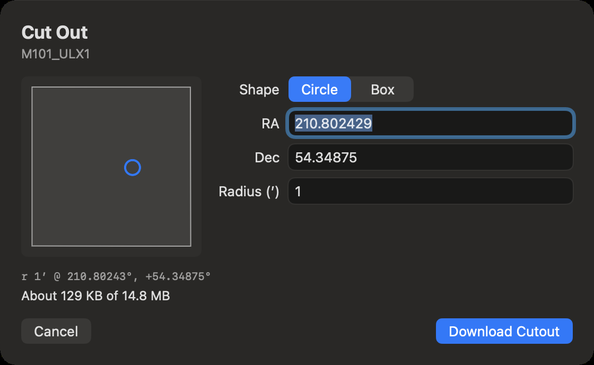
A cutout is the part of a file you need, cut on CADC's side, so you download a fraction of the file. Cut Out… in an observation's detail opens the editor:
- File: which of the observation's files to cut, when it has several. The drawing shows the file's footprint and the region to cut.
- Shape: Circle, with its Radius (′), or Box, with its Width (′) and Height (′),
centred on RA and Dec (degrees, or
hh:mm:ssand±dd:mm:ss). - Images: the extensions to cut. None ticked cuts every image the region falls on.
- Also cut: companion files, such as weights, cut on the same pixels and saved beside the cutout.
- Shortest (nm) and Longest (nm): for a cube, the wavelengths to keep.
The editor says about how big the cutout will be. Download Cutout fetches it, asks where to save it, and keeps it in Research with a link to its original observation.
The ADQL editor
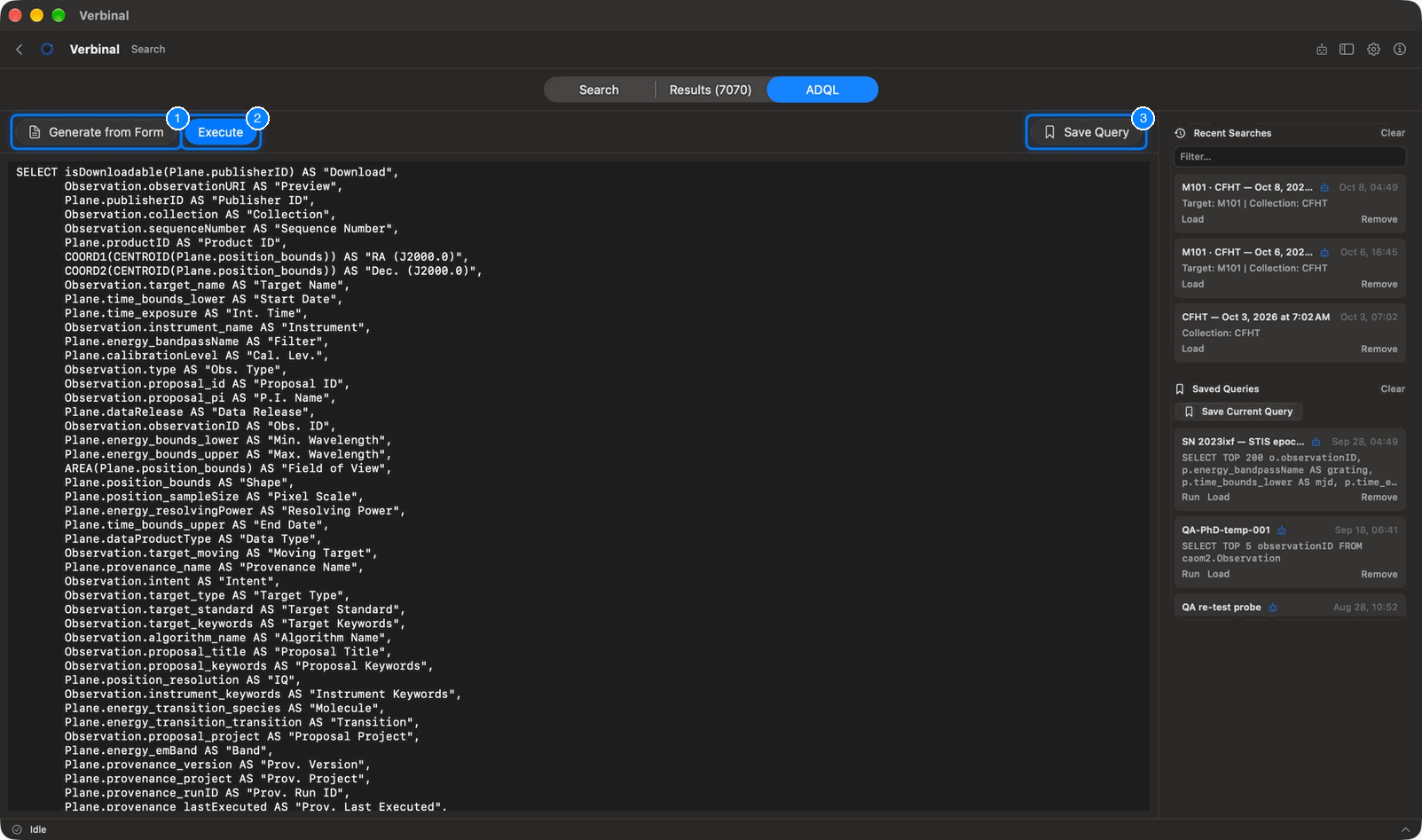
ADQL is the archive's query language. The ADQL tab lets you write a query yourself, or start from the form.
- Generate from Form writes the form's search as ADQL, to edit.
- Execute (⇧⌘↩) runs it; the results go to the Results tab.
- Save Query keeps it in Saved Queries.
Verbinal checks the query as you type, against the archive's tables and columns, and lists the problems under it; click a problem to select it in the query. Execute waits until they are fixed.
Recent searches and saved queries
The side panel keeps your searches.
- Recent Searches: each search you run, with what it asked. Load puts it back in the form, or in the ADQL editor if it was run from there; Remove deletes it; double-click a name to rename it. Filter… finds one; Clear empties the list.
- Saved Queries: Save Current Query keeps the current query under a name. Each has Run, Load and Remove; Clear deletes them all.
What an AI assistant made in these lists carries the Created by AI agent badge.
What an assistant can do here
Everything on this screen: fill in the form and run it, read the results as you see them, sort, filter, change units and columns, open details, export, write and check ADQL, save queries, cut out, and download. It can also search VizieR catalogues at CDS, which the app itself offers only as a name resolver.