Working with an AI assistant
An AI assistant, such as Claude, can work in Verbinal with you: search the archive, download and open observations, read your sessions and storage, run code on CANFAR, and show you around the window. It does this through the Model Context Protocol (MCP), which Verbinal speaks. You decide whether an assistant may connect, what it may do without asking, and you can read everything it did.
What stays private
- Off until you turn it on. No assistant can reach Verbinal until you turn on Allow external AI agents in Settings ▸ AI Agent.
- Nothing on the network. Turning it on starts an MCP server that only programs on this Mac, run by you, can reach. No port is opened and nothing is exposed to the network.
- Your password is never shared. Signing in stays yours; an assistant cannot sign in, sign out, or read your password.
- Your assistant is its own program. What it sends to its own service (for Claude, Anthropic) is between you and that service. Verbinal only answers what the assistant asks.
Connecting an assistant
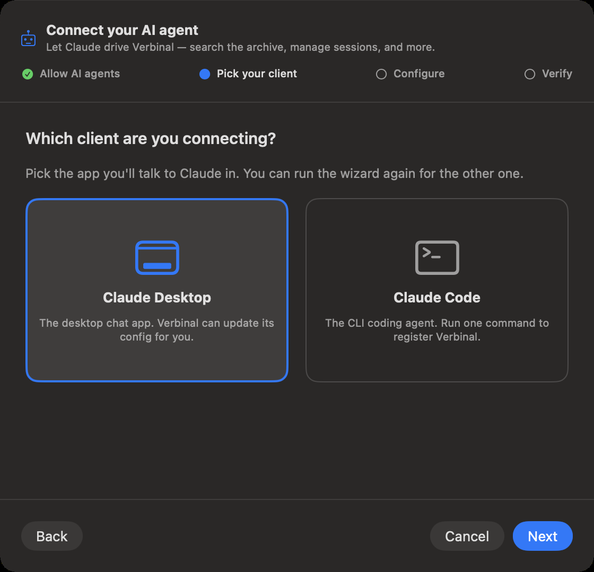
Click the AI Assistant tile on Home, or choose Help ▸ Connect an AI Agent…. The setup, Connect your AI agent, has four steps:
- Allow AI agents: turn on Allow external AI agents.
- Pick your client: Claude Desktop or Claude Code. For another client, see Other clients.
- Configure: as below, for the client you picked.
- Verify: Run self-test checks that Verbinal's server answers. The final proof is in your client: quit it completely, open it again, and check that Verbinal's tools are listed.
Claude Desktop
Configure Claude Desktop asks once for access to Claude's settings folder, then adds the
verbinal-canfar entry to its configuration, pointing at this copy of Verbinal. It changes only that
entry and keeps a backup (.bak) first. Restart Claude Desktop afterwards. Copy Snippet,
Reveal Config and Open Claude are there if you prefer to edit the file yourself.
Claude Code
Claude Code keeps its servers in a file that also holds its sign-in, so Verbinal does not edit it. Copy the command the setup shows and run it in Terminal. It looks like this:
claude mcp add --transport stdio --scope user verbinal-canfar -- '/Applications/Verbinal.app/Contents/MacOS/Verbinal' 'mcp'
Or paste the JSON snippet (Copy JSON Snippet) into the top-level mcpServers of ~/.claude.json.
Restart Claude Code afterwards.
Other clients
Any assistant that can start a local MCP server works the same way: name verbinal-canfar, command
/Applications/Verbinal.app/Contents/MacOS/Verbinal, argument mcp. There is no port, URL or key.
AGENTS.md has the exact settings for Codex, Cursor, Gemini CLI, Windsurf and
VS Code; you can give that file to your assistant and let it set itself up.
Settings ▸ MCP Clients shows the exact command for this Mac and copies it (Copy Command).
Checking the connection
Verbinal must be running, with Allow external AI agents on. While Verbinal is closed, the assistant still connects, and each of its tools answers that Verbinal is not running; once you open Verbinal, it finds it by itself.
If an assistant cannot connect, Settings ▸ MCP Clients ▸ Diagnostics checks each link: the server, its listener, the shared container, the socket, the tools and Claude Desktop's configuration, with a button to fix what it can. See also Troubleshooting.
Allowing a session
Every time an assistant connects, it must start a session, and Verbinal asks you first, in a window: An assistant wants to start a session.
- Client, Connection and Asked: which program asks, over MCP, and when.
- How the assistant presents itself: who it says it is, its model, and its purpose, in its own words. Verbinal cannot check them.
- Instructions for this session: what the assistant must follow for the whole session, up to 250 words. The box starts with your Session Instructions; change them for this session only, or Reset them.
- Allow starts the session; Deny refuses it. The window waits as long as the assistant waits.
Until you allow it, the assistant can only ask Verbinal to describe itself. The session lasts while the assistant stays connected; after Verbinal or the assistant restarts, it asks again.
Your default instructions are in Settings ▸ AI Agent ▸ Session Instructions. Out of the box they read: "Use only Verbinal and its tools for this work: no other apps, and no network connections outside Verbinal. Ask before anything destructive." The assistant is told to follow them, and the session log keeps them, but Verbinal cannot stop an assistant from using its other tools or connections outside Verbinal.
What an assistant may do without asking
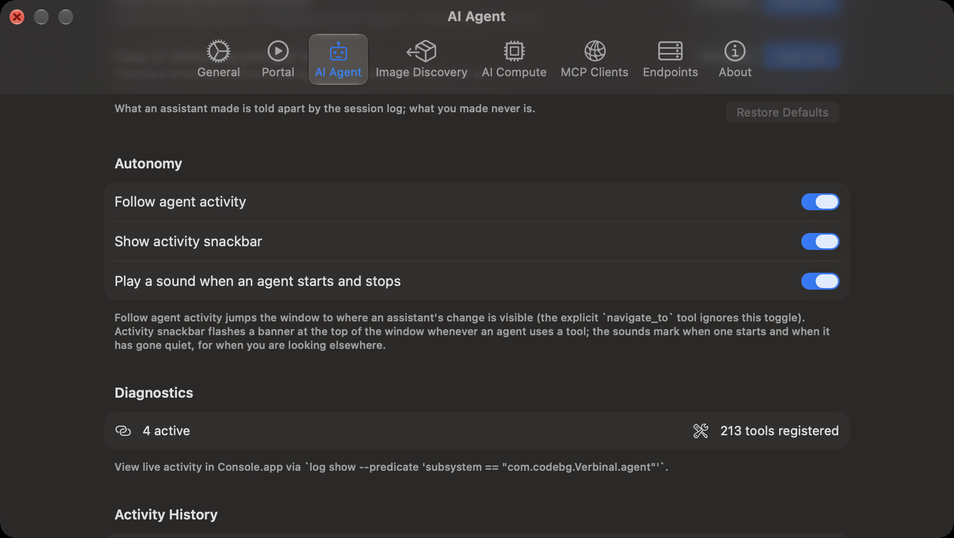
Every change an assistant can make is of one kind. In Settings ▸ AI Agent, under What an assistant may do without asking, you set each kind to Allowed (the change applies at once, with its reason in the session log) or Ask me (it waits in Pending until you apply it).
| Kind | What it covers | Out of the box |
|---|---|---|
| Notes and saved things on this Mac | Notes, ratings, saved queries, workflows, bookmarks, Research records | Allowed |
| Files saved on this Mac | Downloads, cutouts, figures and exports, as new files, never over one | Allowed |
| Add to your CANFAR storage | New files and folders in your VOSpace | Allowed |
| Use your CANFAR allocation: sessions and compute | Launching and renewing sessions; Remote Compute and the code it runs | Allowed |
| Use your CANFAR allocation: batch jobs and image probes | Batch jobs, and the probe jobs that find what an image has installed | Allowed |
| Sharing: who may read or write your files | Who may read or write your VOSpace files and folders | Ask me |
| What every assistant is told | Guide tools and tool descriptions every later assistant reads | Always asks |
Under What removes, replaces or stops:
| Kind | What it covers | Out of the box |
|---|---|---|
| Remove what an assistant made | Anything an assistant made, as the session log records it, never yours | Allowed |
| Remove notes and saved things on this Mac | Saved queries, recent searches, workflows, bookmarks, image list entries, probe errors | Ask me |
| Remove files on this Mac | Downloaded files and their Research records | Ask me |
| Remove or replace in your CANFAR storage | Deleting from your VOSpace, or uploading over a file there | Ask me |
| Stop running work on CANFAR | Deleting a running session, or stopping Remote Compute: unsaved work in it is lost | Ask me |
| Clear or delete everything at once | Clearing a whole list, archive or storage area, or many sessions in one go | Ask me |
What an assistant made is told apart by the session log; what you made never is. Restore Defaults puts every kind back as above. Changes to What every assistant is told always wait for you.
Pending: changes waiting for you
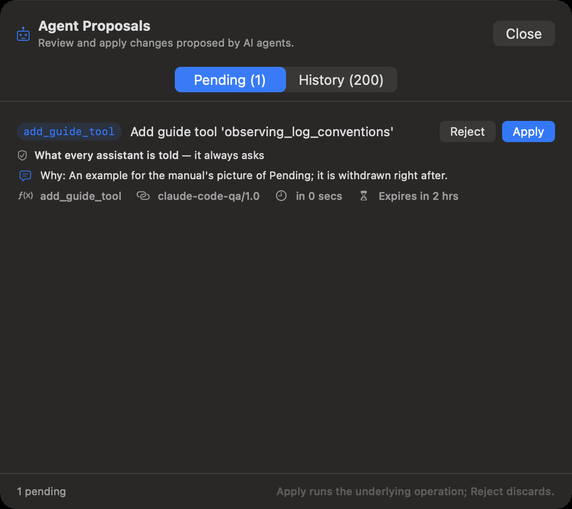
When a change waits, the robot button in the toolbar shows a red count. Click it to open Agent Proposals:
- Pending lists what waits. Each change says what it is, why it waits (it always asks, you ask to approve this kind, or proposed before you allowed it), the assistant's reason (Why:), which client proposed it, and when it expires: three hours after it was proposed.
- Apply runs the change; Reject discards it.
- History lists what happened: Applied by you, Auto-applied, Applied in the background, what was rejected, and what the assistant opened, closed or showed.
Watching an assistant work
In Settings ▸ AI Agent ▸ Autonomy:
- Follow agent activity (on): when an assistant's change applies, the window goes where you can see it: a saved query to Search, notes and downloads to Research, VOSpace changes to Storage, sessions to Portal.
- Show activity snackbar (on): a banner at the top of the window, AI agent is working…, while an assistant uses its tools. Its × hides it.
- Play a sound when an agent starts and stops (off): for when you are looking elsewhere.
An assistant gets an answer within 45 seconds. Longer work, such as a big download or a job, carries on in the activity bar at the bottom of the window, started by Your assistant.
What an assistant made carries a small badge, Created by AI agent, with the client's name: in Research, Workflows, saved queries, recent searches, FITS bookmarks and recent launches.
Hints: what your assistant shows you
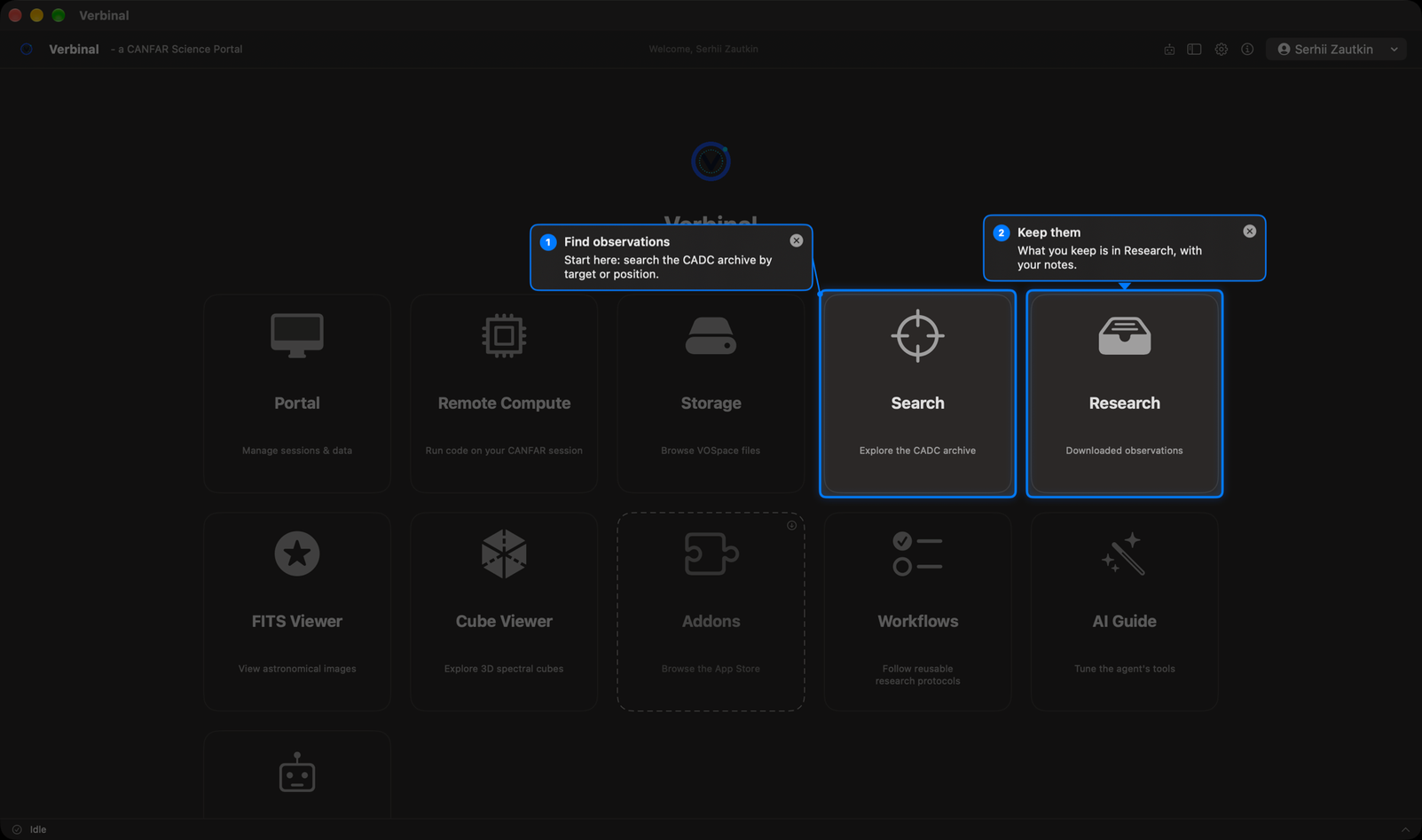
To show you something, an assistant puts hints on the window: a ring round a control, a bubble with its words beside it, numbers for a tour, and the rest of the window dimmed.
- Hints never press anything. An assistant can also select an entry of a list, or open a folded section, a panel, a menu or a sheet, as your click would; what to choose inside stays yours, and a file panel waits for you.
- The × on a hint closes it; Esc closes them all. With many hints, a Hints list holds their words, with Close all hints.
- They go away by themselves: a bubble after 8 seconds and a ring after 15, unless the assistant keeps them up longer (up to two minutes, or until you close them), and when you change screen.
Hints are not the marks on an image: marks are data, kept with the file (see FITS Viewer).
The session log
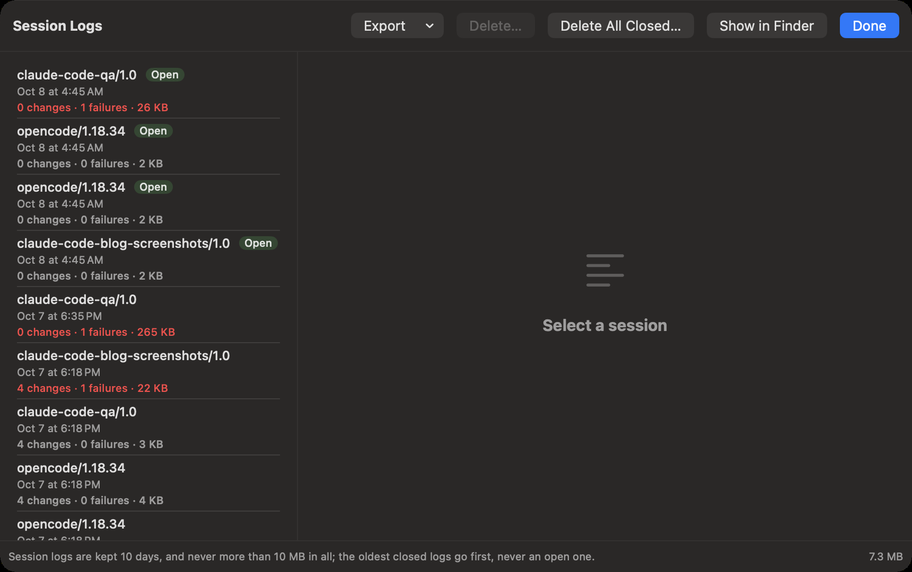
Verbinal keeps a log of each assistant's session: each change, who made it and why, the app's decisions, every request to CADC and CANFAR, and failures with what they mean. It keeps what happened, not your data: no passwords, file contents, queries or paths.
Open it from Settings ▸ AI Agent ▸ Session Logs ▸ Show Session Logs…:
- The list on the left has one entry per session: the client, Open while it is connected, when it started, and how many changes and failures it had.
- Select one to read it. Show filters it: All, Changes, Failures, Decisions, Calls. Open an entry to see its requests: which service, what the answer meant, and how long it took.
- Export saves a session as text (Export as Text…) or as JSON Lines (Export as JSON Lines…).
- Delete… and Delete All Closed… delete logs; an open session keeps its own. This cannot be undone. Show in Finder shows where they are kept.
Logs are kept 10 days, and never more than 10 MB in all; the oldest closed logs go first, never an open one. An assistant reads its own log too, to explain what was slow or failed.
Lower in Settings ▸ AI Agent, Diagnostics says how many assistants are connected and how many tools they have, Recent Activity lists the last calls (only what they were and how they ended, never their arguments), and Activity History keeps a short summary of each change, with Clear.
What an assistant can and cannot do
An assistant has about two hundred tools: everything you can do on every screen in this manual. It can see the window as you do, read what each control is, and point at it. Each chapter ends with what an assistant can do on that screen.
Some things stay yours, on purpose:
- Signing in and out, and your password.
- Settings: an assistant can read your endpoints and Remote Compute settings, but not change any setting, the compute image or registry credentials included.
- Choosing inside a menu, a sheet or a file panel it opened; and right-click menus.
- Your housekeeping: Clear Finished in the activity list, and Clear History in Batch Jobs.
- What every later assistant is told (the AI Guide): it can propose, and it always waits for you.
- Running code: only on CANFAR, with the image you chose in Settings ▸ AI Compute (see Remote Compute).
Stopping an assistant
- Deny a session it asks for.
- Reject what waits in Pending.
- Turn off Allow external AI agents in Settings ▸ AI Agent: the server stops, and no assistant can reach Verbinal until you turn it on again.
- Or quit the assistant's own app.