AI Guide
The AI Guide is what every AI assistant is told when it connects to Verbinal: your own standing rules, and the description of each of Verbinal's tools. It is yours to shape. Open it from its Home tile, or Go ▸ AI Guide (⌘7).
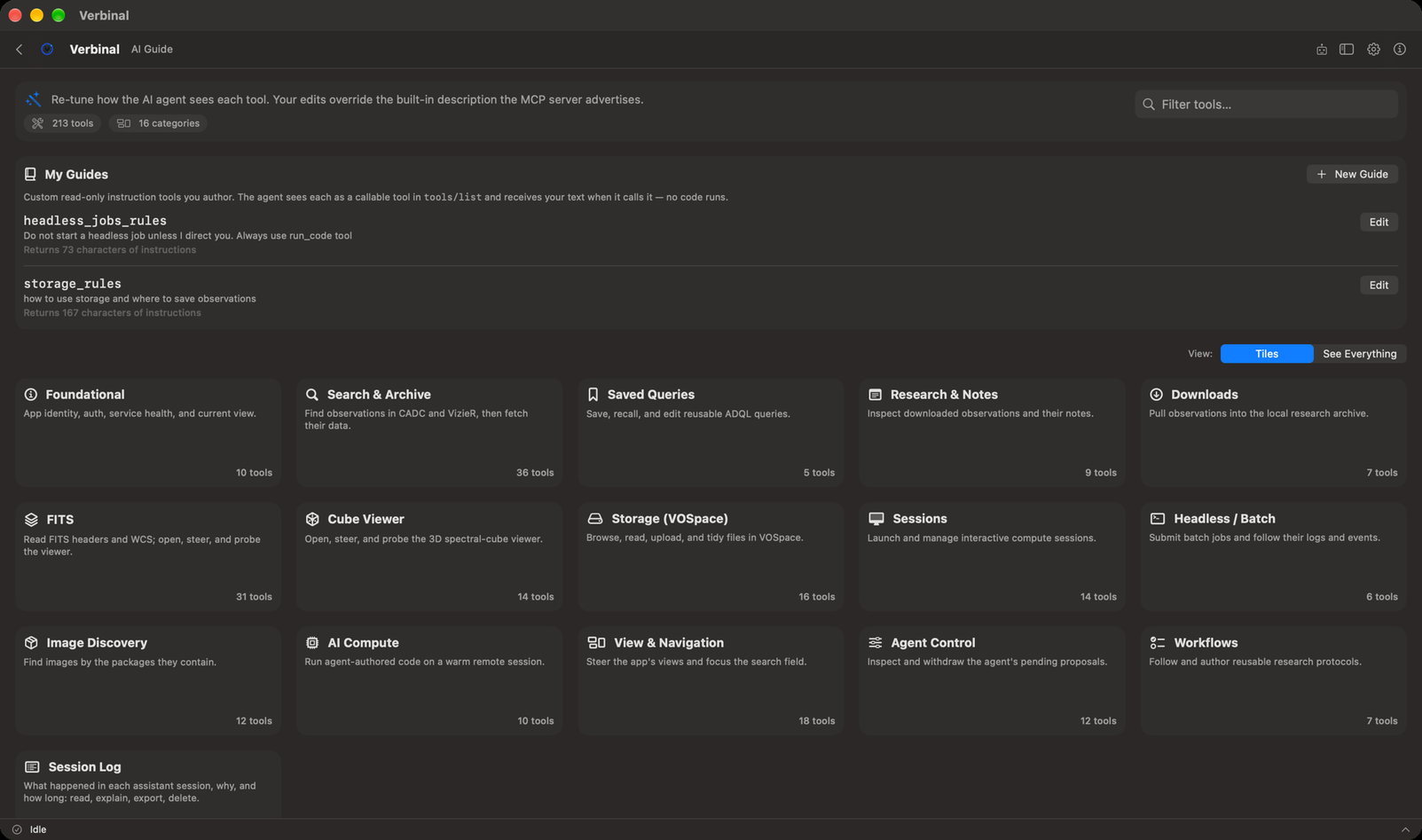
Your guides: standing rules for every assistant
My Guides are short texts you write once and every assistant reads. Each appears to an assistant as a tool of its own; when the assistant calls it, it gets your text back. No code runs. Use them for a rule ("Do not start a batch job unless I ask"), a convention ("Name folders by target"), or a workflow you want followed.
Verbinal tells every assistant, first thing, to read the person's standing rules, and lists your guides by name.
- Click New Guide.
- Name: letters, numbers, spaces or underscores. The sheet shows the name the assistant calls it by (The agent calls this as …).
- Description — what the agent reads in the tool list: one line on what the guide is for, up to 600 characters.
- Instructions — returned when the agent calls this tool: the rule itself, up to 4,000 characters. It is optional; without it, the description is returned.
- Click Save.
Each guide in the list shows its description and how long its instructions are (Returns … characters of instructions). Edit opens it again, with Delete.
Tool descriptions
Below your guides, Verbinal's tools are grouped by area: search and the archive, saved queries, Research, downloads, FITS, the Cube Viewer, storage, sessions, batch jobs, Image Discovery, Remote Compute, the view and navigation, the assistant's own controls, workflows and the session log. The header counts the tools, how many you have changed, and the areas.
- View: Tiles shows one tile per area; click a tile to open it. See Everything lists every tool at once.
- Filter tools… finds a tool by its name or words in its description.
- Each tool shows the description an assistant reads. Edit it, write Your description beside the Built-in default, and Save. Your words replace the built-in ones for every assistant from then on; the tool is marked overridden, and its area has overrides.
- Clear Override or Reset to Default brings back the built-in description.
Change a description when an assistant keeps misusing a tool, or to steer it ("prefer the smallest size"). It changes what assistants are told, not what the tool does.
When an assistant proposes a change here
An assistant can propose a new guide, a change to one, or a new description. Such a change is of the kind What every assistant is told, and it always waits for you in Pending, whatever your other settings: see Pending.
Hiding the tile
If you do not use it, turn off Show AI Guide on the launchpad in Settings ▸ MCP Clients. Only the tile goes; your guides and descriptions stay in force, and Go ▸ AI Guide still opens it.
What an assistant can do here
It can read your guides and the tool descriptions, and propose changes to them; each waits for you.